
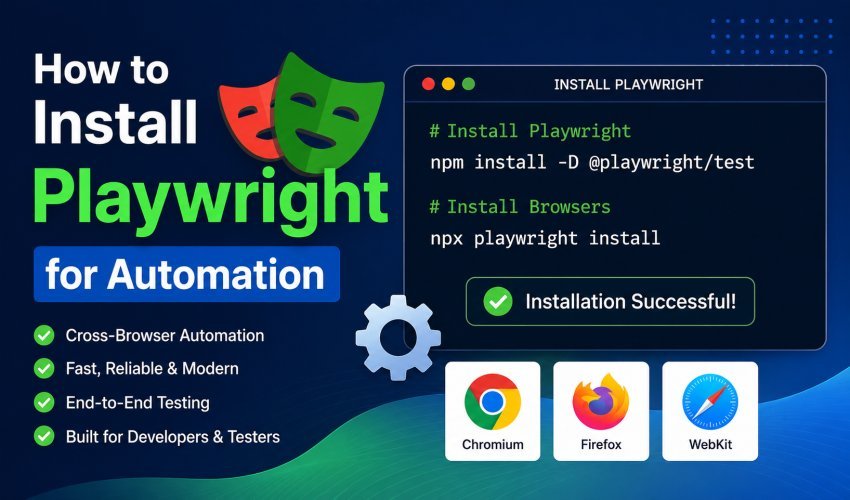
If you want a modern and dependable way to automate web browsers, one of the best ways to get started is by Learning How to install Playwright for automation. Built to facilitate browser automation and allow devs/testers a means to automate their interactions with various browsers (Chromium, Firefox, and WebKit), Playwright is very popular among companies today due mainly to its speed, stability, and cross-browser compatibility; therefore, it can be used for end-to-end testing, web scraping, and QA.
Why install Playwright for Automation?
Installing Playwright for Automation creates a strong base from which to build reliable workflows for automating browsers. In addition, Playwright supports all of today’s modern web apps and assists teams in improving software quality while lessening their dependence on manual testing.
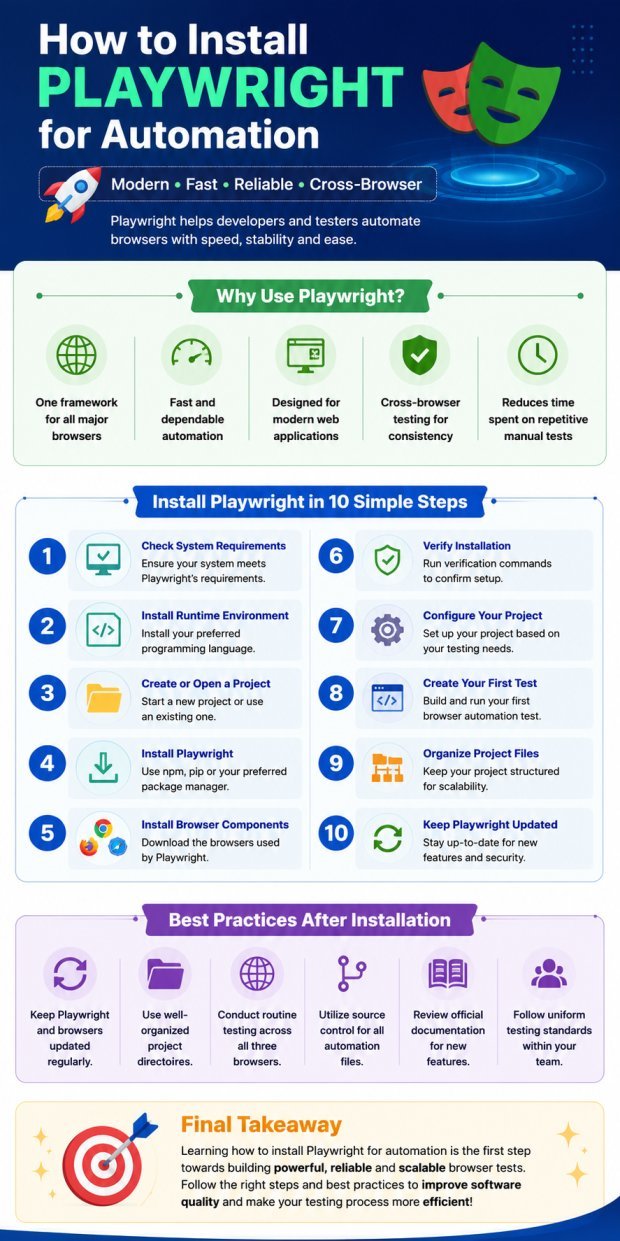
Reasons to Use Playwright Automation
- One framework that can run on multiple types of browsers.
- Quick browser automation that’s dependable.
- Designed to support modern web applications.
- Supports cross-browser testing to provide users with consistency across browsers.
- Decreases the time it takes to perform repetitive manual tests.
- Has several features built in that help in dealing with dynamic web content.
- Increases the overall accuracy of test results, as well as provides stable automated capabilities.
- Works well with existing industry-standard development and testing processes.
- Facilitates early issue detection in the software development life cycle.
- Can be used by both novice and expert automation professionals.
How to Install Playwright
Here are some steps you can take to install Playwright for automated testing:
- Make sure you meet all Playwright system requirements for your computer.
- Install your preferred programming language’s runtime environment.
- Decide if you want to start a new project or use an existing one to use Playwright with.
- Download and install Playwright using your preferred package manager.
- Install the browser components that Playwright uses.
- Make sure that you installed all software correctly.
- Set up your project based on how you will be testing and/or automating.
- Build your first automated testing application in a browser to see that it’s working properly.
- Organize your project for future maintainability and scalability.
- Install the latest version of Playwright to use new features, improve performance, and enhance security.
Best Practices After Installation
Some best practices for using Playwright with Automation will enhance your experience once you install the tool and all available browser components. You should:
- Make sure that both Playwright and all browser components (such as Chrome, for example) are current/updated on an ongoing basis;
- Use well-organized project directories to help with maintenance;
- Conduct routine testing across all three browsers;
- Utilize source/version control on all automation files;
- Review the Playwright documentation regularly to take advantage of new functionality; and
- Follow uniform testing standards within your development group.
Conclusion
Learning how to install Playwright for Automation is a great first step towards generating automated browser interactions and performing end-to-end testing, as it has cross-browser compatibility, a modern architecture design, and is very reliable when executed. By installing the software correctly and following the listed best practices, you will be able to create reliable, expandable, and efficient automation projects that will enhance the quality of your software and help you create a more efficient testing process.
Frequently Asked Questions (FAQs)
What are the five reasons to use Playwright for the browser?
- One framework that can run on multiple types of browsers.
- Quick browser automation that’s dependable.
- Designed to support modern web applications.
- Supports cross-browser testing to provide users with consistency across browsers.
- Decreases the time it takes to perform repetitive manual tests.
Write some best practices for installing Playwright for browser automation?
- Make sure that both Playwright and all browser components (such as Chrome, for example) are current/updated on an ongoing basis;
- Use well-organized project directories to help with maintenance;
- Conduct routine testing across all three browsers;
- Utilize source/version control on all automation files;
- Review the Playwright documentation regularly to take advantage of new functionality.
- Follow uniform testing standards within your development group.

Read Dive is a leading technology blog focusing on different domains like Blockchain, AI, Chatbot, Fintech, Health Tech, Software Development and Testing. For guest blogging, please feel free to contact at readdive@gmail.com.