You plug in your phone before bed, and in the morning it’s still at 12%. Or the cable only works if you hold it at a certain angle. A charging port problem is one of the most common phone issues people deal with today. It’s also one of the most annoying, because a phone that won’t charge is a phone you can’t use. The good news is that many charging problems have simple causes. Lint, a worn cable, or a software glitch can all stop a phone from charging. Some of these you can fix at home in a few minutes. Others need a repair shop. This article explains why charging ports stop working, how to tell what’s causing your problem, and what you can safely try yourself. It also covers when it’s time to get professional help and how to keep your port working longer. Here’s where to start.
How a Phone Charging Port Works
The charging port is the small opening at the bottom of your phone. Most Android phones and every iPhone since the iPhone 15 use USB-C. Older iPhones use Apple’s Lightning port.
Inside the port are tiny metal contacts. When you plug in a cable, those contacts connect and let power and data flow between the charger and your phone. A chip inside the phone then controls how fast the battery charges.
If anything blocks or damages those contacts, the connection weakens or fails. That’s why charging problems are so common. The port is small, open to the outside, and used several times a day.
Signs Your Charging Port Is Having Trouble
Charging port problems don’t always show up all at once. Watch for these signs:
- The phone only charges when the cable is held at an angle.
- The cable feels loose or falls out easily.
- Charging starts and stops over and over.
- The phone charges much slower than it used to.
- Your phone doesn’t show the charging icon at all.
- Your computer doesn’t recognize the phone when connected.
- You see a warning about moisture or an unsupported accessory.
Why Charging Ports Stop Working
There are a handful of common causes. Some are easy to fix. Others need parts or tools.
Lint and Debris
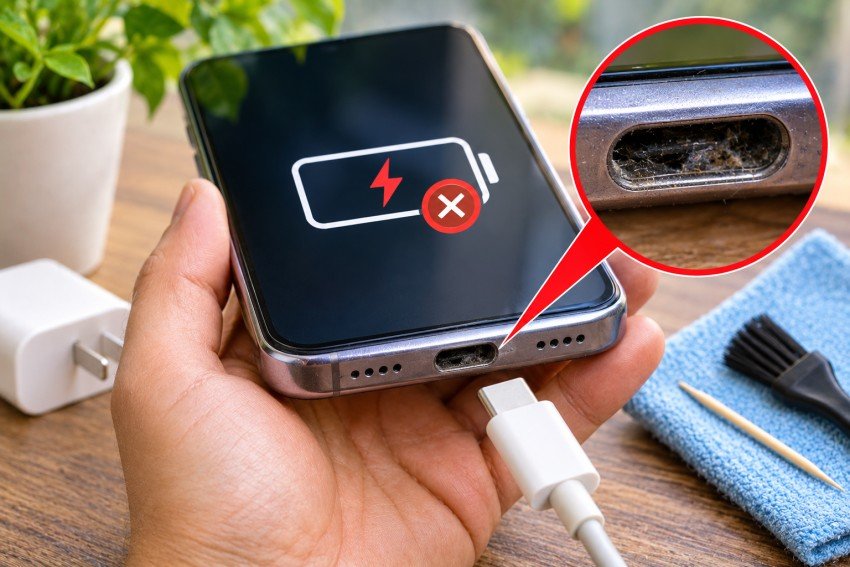
This is the most common cause by far. Pocket lint, dust, sand, and crumbs get pushed into the port every time you plug in a cable. Over months, it packs down into a hard layer at the bottom. The cable can’t go in all the way, so the contacts don’t touch.
Worn or Low-Quality Cables and Chargers
Cables take a lot of bending and pulling. The wires inside can break even when the outside looks fine. Cheap, uncertified chargers and cables can also deliver unstable power, which may harm the port or the charging chip over time.
Liquid and Corrosion
Water, sweat, and humidity can reach the port. Even phones with water resistance can have problems if the port gets wet and you charge it right away. Over time, moisture can cause corrosion on the metal contacts, which blocks the connection.
Bent or Loose Parts
Dropping your phone while it’s plugged in, or yanking the cable out at an angle, can bend the contacts or loosen the port from the board. You might notice the cable wiggles more than it used to.
Software Glitches
Sometimes the hardware is fine. A bug or a stuck background process can stop the phone from recognizing the charger. Some battery features can also make it look like charging stopped. For example, newer iPhones and many Android phones can hold the charge at 80% or a set limit to protect the battery.
Battery or Board Problems
If the battery is badly worn or the charging chip on the main board is damaged, a clean port won’t help. These issues need a technician to diagnose.
Rule Out the Cable and Charger First
Before you blame the port, test the easy stuff.
- Try a different cable that you know works.
- Try a different wall adapter.
- Plug into a different outlet or a computer.
- Check the cable’s tip for dirt, bent metal, or damage.
If the phone charges fine with a different cable, you found the problem. Replace the old cable with a certified one. For iPhones, look for MFi-certified Lightning cables or quality USB-C cables from known brands.
How to Clean Your Charging Port Safely
If the cable and charger work on another phone but not yours, lint is the next likely cause. You can clean it at home, but go slow.
- Turn off your phone.
- Use a flashlight to look inside the port. You may see gray or dark fuzz at the bottom.
- Use a wooden or plastic toothpick to gently scrape along the inside walls and loosen the debris. Don’t press on the contacts.
- Tip the phone and tap it lightly so loose bits fall out.
- Check again with the flashlight and repeat if needed.
- Turn the phone back on and test it.
Don’t use metal objects like pins, needles, or paper clips. They can scratch the contacts or cause a short. Also avoid pouring liquid cleaner into the port or blowing hard compressed air straight in, which can push debris deeper.
If the lint is packed in hard, a repair shop can clean it out with proper tools. It’s usually a quick and low-cost fix.
Restart and Update Your Phone
If the port looks clean and the cable works, try a restart. It clears minor software issues that can block charging.
Then check for a system update. Phone makers often release fixes for charging and battery bugs. On an iPhone, go to Settings, then General, then Software Update. On most Android phones, look under Settings, then System or Software Update.
It’s also worth checking your battery settings. If your phone is set to stop charging at 80%, it may look like it’s not charging when it actually is working as designed.
What to Do If Your Phone Says Liquid Detected
Many phones now warn you when they find moisture in the port. iPhones show a liquid detection alert, and Samsung phones show a moisture warning. When this happens, the phone blocks wired charging to prevent damage.
Unplug the cable. Tap the phone gently with the port facing down to remove extra liquid. Then leave it in a dry place with some airflow for at least 30 minutes, or longer if needed. Don’t use a hair dryer or put the phone in rice. Heat can damage parts, and rice dust can get into the port.
If the warning keeps showing up after the phone is dry, there may be corrosion. That needs a professional cleaning or repair.
Use Wireless Charging as a Backup
If your phone supports wireless charging, a Qi or Qi2 pad can keep it powered while you sort out the port. It’s slower than wired charging for some models, but it works.
This is a short-term fix, not a cure. A damaged port can still get worse, and you may need wired access for data transfers or backups.
When to Get Professional Help
Some problems are beyond a home fix. Get your phone checked if:
- Cleaning didn’t help and the cable is known to work
- The port feels loose or the pins look bent
- You see green or white crust inside the port
- The phone gets hot while charging
- The phone was dropped in water
A technician can test the port, battery, and charging chip to find the real cause. If you’re in South Florida, a cell phone repair rowlett shop can usually run these tests the same day.
Repair or Replace: What to Expect
In many cases, a charging port can be cleaned or replaced without replacing the whole phone. On many models, the port sits on a small flex cable or sub-board that a technician can swap out. That’s often cheaper than a new battery or screen.
If the damage is on the main board, the repair gets more complex. A good technician will explain your options and costs before doing any work.
In north Georgia, a cell phone repair shop Greensboro NC residents use can give you a quote and tell you whether a repair makes sense for your phone’s age and condition.
How to Keep Your Charging Port Working Longer
A few simple habits can prevent most charging port problems:
- Keep your phone in a clean pocket or bag, away from lint and sand.
- Use a phone case with a port cover if you work in dusty places.
- Plug and unplug the cable straight, not at an angle.
- Don’t use your phone heavily while it’s plugged in and resting on the cable.
- Use certified cables and chargers.
- Let the port dry fully before charging if it gets wet.
- Check and gently clean the port every few months.
Final Thoughts
A phone that won’t charge is frustrating, but the cause is often simple. Start with the cable and charger, then check for lint, then try a restart. These steps fix a large share of charging problems.
If none of them work, or if you see signs of damage, get it checked. A port repair is usually quick and costs far less than a new phone.

Read Dive is a leading technology blog focusing on different domains like Blockchain, AI, Chatbot, Fintech, Health Tech, Software Development and Testing. For guest blogging, please feel free to contact at readdive@gmail.com.