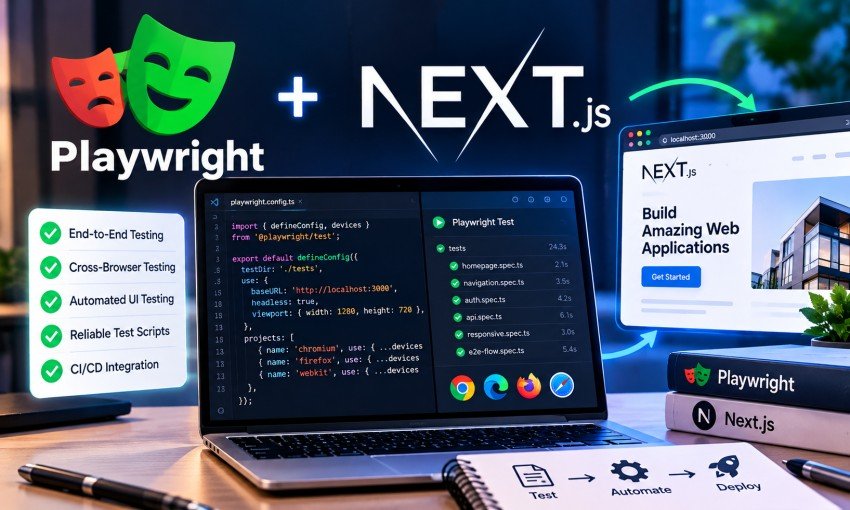
Modern Next.js applications combine Server Components, Client Components, Server Actions, Route Handlers, forms, authentication, dynamic navigation, and database operations. Testing each piece separately is useful, but it does not always tell you whether the complete application works correctly for a real user.
Playwright provides a practical way to test these workflows in a real browser. Instead of checking only whether a component renders, you can open the application, interact with it, submit forms, navigate between pages, test responsive behavior, and verify the result.
This guide covers how to set up Playwright in a Next.js application, test shadcn/ui components by behavior, manage authentication and test data, run tests across browsers and mobile viewports, and integrate the suite into CI.
Why Use Playwright in Next.js Applications?
Next.js applications combine server-side rendering, client interactions, Server Components, Server Actions, APIs, and database operations. A single user action can pass through several of these layers before the interface changes.
Testing each part separately can miss problems between them. Playwright helps by testing the application in a browser, from the user’s perspective.
A typical flow might look like this:
User opens page → enters information → clicks a button → Server Action executes → database is updated → UI changes → result is verified.
This makes Playwright particularly useful for production-oriented applications where the important question is whether the complete feature works as expected.
Real Browser Testing
Unit tests are useful for isolated functions and components. They can confirm that a button renders, a validation function returns the expected value, or a component receives the correct props.
They may not confirm what happens after a user clicks that button.
Playwright can test the complete interaction. For example, it can verify that clicking Delete Account opens a confirmation dialog, the user can confirm the action, the account is removed, and a success message appears.
The distinction is simple:
Unit testing checks small pieces of code.
Playwright checks complete user workflows.
Both belong in a strong test strategy. Unit tests catch problems close to the code, while end-to-end tests verify that the pieces work together.
Why shadcn/ui Applications Require Testing
shadcn/ui components are added directly to the project, giving developers control over the component code. That flexibility also means interactive components become part of the application’s own codebase.
For teams building Next.js interfaces with shadcn/ui, reusable resources can also provide a more consistent starting point. Shadcn Templates can provide complete application starting points, while Shadcn Blocks can provide reusable UI patterns for the components you need to test.
A visual review may show that a dialog looks correct. An end-to-end test can verify that it opens, displays the expected content, closes correctly, handles keyboard interaction, and produces the expected result.
Tests should focus on user-facing behavior instead of depending heavily on internal DOM structure. This is especially useful when the underlying primitive implementation changes.
What Playwright Can Test
Playwright can simulate the actions users perform every day:
- Clicking buttons
- Typing into forms
- Navigating between pages
- Uploading files
- Submitting forms
- Opening dialogs
- Selecting dropdown options
- Using keyboard controls
- Testing multiple browser engines
- Testing mobile viewports
The goal is to write tests that describe meaningful user journeys rather than implementation details.
Testing Server Components
Server Components run on the server before their output reaches the browser. Instead of trying to test their internal execution with Playwright, verify the rendered result.
For a product page, you can check that the product name appears, the price is displayed, images load, buttons work, and navigation behaves correctly.
The important flow is:
Database → Server Component → rendered page → user sees the result.
Playwright verifies the final behavior that matters to the user.
Testing Client Components
Client Components handle browser interactions such as buttons, forms, dropdowns, theme toggles, tabs, and dialogs.
Test them through user actions. Open the component, interact with it, and verify the resulting state.
This keeps the test focused on behavior. It also makes the test less fragile when the component’s internal implementation changes.
Testing Server Actions
Server Actions often sit between a form interaction and a database mutation.
A useful end-to-end test can fill the form, submit it, wait for the result, and verify that the updated data appears in the interface.
Also test validation errors, pending states, disabled submit buttons, redirects, and the final updated state. The test should prove that the complete workflow works, rather than simply proving that the action exists.
Testing Route Handlers
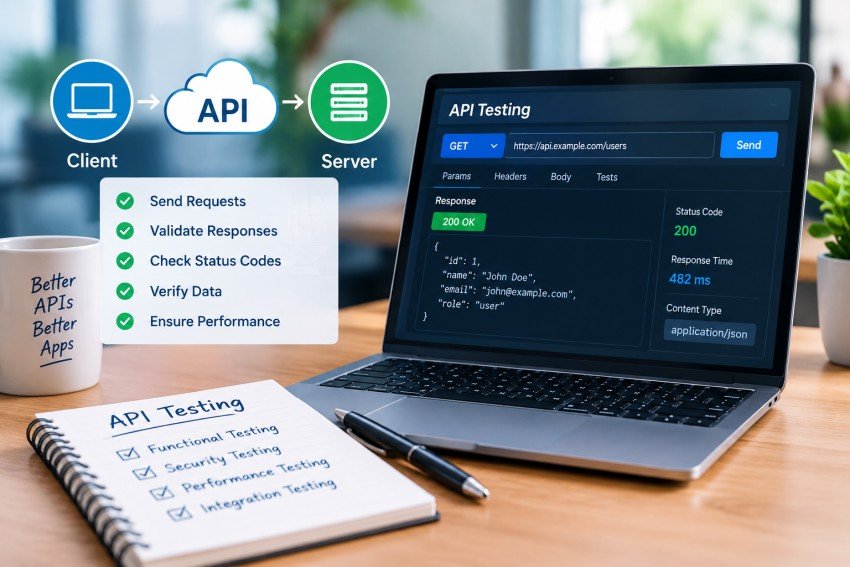
Next.js applications can expose API endpoints through Route Handlers. Playwright’s request fixture can test these endpoints without opening a browser page.
For example, you can request an API endpoint, verify that the response is successful, parse the JSON response, and check that the returned structure is what the application expects.
This is useful for backend-facing checks that do not require browser interaction.
Installing Playwright
Before installing Playwright, make sure the Next.js application already runs correctly.
A typical project should have a working Next.js application, TypeScript configuration, shadcn/ui configuration, and a working Node.js environment.
Run the development server and confirm the production build also succeeds:
npm run dev
npm run build
Then install Playwright using the setup wizard:
npm init playwright@latest
For a typical project, choose TypeScript, use e2e as the test folder, optionally configure GitHub Actions, and install the browsers.
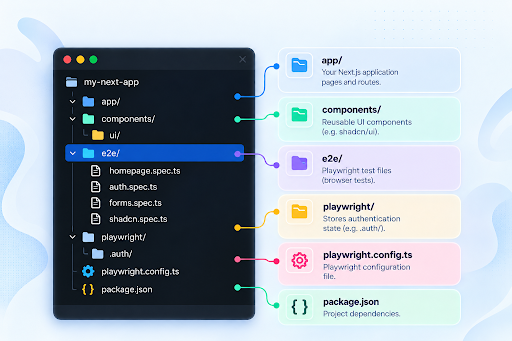
Recommended Project Structure
You do not need a complicated testing architecture when starting.
A clean structure keeps browser tests separate from unit and integration tests:
my-next-app/
├── app/
├── components/
│ └── ui/
├── e2e/
│ ├── homepage.spec.ts
│ ├── auth.spec.ts
│ ├── forms.spec.ts
│ └── shadcn.spec.ts
├── playwright/
│ └── .auth/
├── playwright.config.ts
└── package.json
Using e2e/ makes the purpose of these tests immediately clear. If the project already uses tests/ for unit tests, keeping Playwright tests in e2e/ avoids mixing different testing layers.
GitHub Actions Workflow
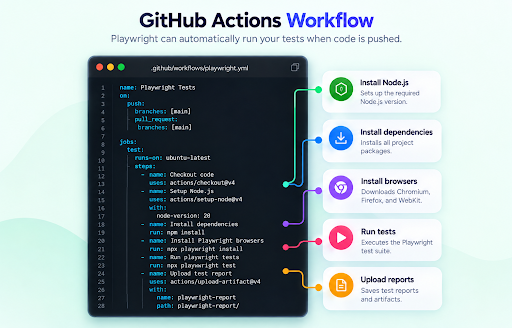
Playwright can automatically run tests through GitHub Actions.
A typical workflow is:
Code push → GitHub Actions → install dependencies → install browsers → build application → run Playwright tests → generate report.
The workflow can also upload Playwright reports and other artifacts when a test fails. This turns end-to-end testing into part of the normal development process instead of a manual step before release.
Configuring Playwright for Next.js
The playwright.config.ts file controls where tests live, which browsers are used, how the application starts, and what debugging information is captured.
Useful settings include testDir, baseURL, webServer, retries, trace, screenshots, video, and browser projects.
A practical configuration can use Chromium, Firefox, and WebKit, with screenshots and videos retained when tests fail. The webServer option can start the Next.js application automatically before the test suite runs.
For CI or release testing, consider testing the production build rather than relying only on the development server.
Debugging Failed Tests
Browser tests can fail for reasons that are difficult to understand from an assertion alone.
Playwright provides traces, screenshots, and videos that show what happened during a failed test. Trace information can include browser actions, screenshots, DOM snapshots, network activity, and console messages.
Useful commands include:
npx playwright test –debug
npx playwright test –ui
These tools are generally more useful than simply increasing timeouts.
Write Your First Test
Create an end-to-end test such as e2e/homepage.spec.ts.
A simple test can open the homepage, verify a heading, click a Get Started link, and confirm that navigation reaches the dashboard.
Run the suite with:
npx playwright test
Use –headed when you want to watch the browser, or –debug when you need to step through the test interactively.
Use User-Facing Selectors
One of the most important Playwright practices is choosing selectors that represent how users interact with the interface.
Prefer getByRole(), getByLabel(), and getByText(). Use getByTestId() when there is no reliable user-facing selector.
For example, selecting a button by its accessible role and name is usually more resilient than selecting it through a CSS class. CSS classes and DOM structure are implementation details that can change during a redesign.
Accessible selectors also encourage better markup and fit naturally with behavior-focused shadcn/ui tests.
Testing shadcn/ui Components
shadcn/ui components should be tested based on behavior rather than their internal DOM structure.
The patterns that matter most include buttons, dialogs, dropdown menus, Select components, forms, toasts, tabs, and keyboard interactions.
Button
Test that the button is visible and that clicking it produces the expected result. For pending operations, also verify that the button becomes disabled or otherwise communicates that the action is in progress.
Dialog
Test opening, content, closing, and important focus behavior.
Many shadcn/ui overlays render through portals. Instead of searching only inside the component that triggered the dialog, locate the dialog from the page.
The same principle applies to dropdown menus, popovers, tooltips, and sheets.
Dropdown Menu
Open the menu, verify that it is visible, select an item, and verify the resulting behavior. Keyboard interaction can also be tested when it is important to the workflow.
Select
A shadcn/ui Select is not a native HTML select. Do not rely on selectOption() for it. Interact with the trigger as a user would, choose the option by role, and verify the selected value.
Form
Forms should cover both invalid and successful submissions.
Start by submitting invalid or empty data and verify the validation message. Then provide valid data, submit again, and verify the successful result.
For asynchronous forms, use Playwright assertions instead of fixed waits.
Toast
Test the action that triggers the toast rather than testing its internal implementation. Because toasts may disappear quickly, assert the message immediately after the action instead of adding arbitrary delays.
Tabs
Click the expected tab and verify that the corresponding panel becomes active. When multiple panels are present, scope assertions to the active panel rather than searching the entire page.
Accessibility Testing
Using accessible selectors gives your tests some accessibility awareness, but it is not a replacement for a complete accessibility audit.
For interactive components, test keyboard navigation, focus movement, focus traps, focus restoration, Escape-key behavior, accessible labels, and keyboard-only workflows.
For example, an open dialog should respond correctly to Escape and should restore focus appropriately after closing.
Testing Loading and Error States
Next.js applications commonly use loading.tsx, error.tsx, and not-found.tsx. These states should be tested when they matter to the user experience.
Avoid arbitrary delays such as waitForTimeout(3000). Instead, wait for the state that matters. Playwright assertions automatically wait for the expected condition.
If you need to test a loading UI specifically, make the loading state deterministic in the test environment rather than depending on naturally slow network requests.
Visual Regression Testing
Playwright can compare screenshots to detect unexpected layout shifts, missing elements, spacing changes, and styling regressions.
Use visual tests selectively. Focus on important pages, complex layouts, critical component states, and interfaces that are expensive to review manually.
Dynamic values such as dates, random content, and changing user information should be stabilized or masked when necessary.
Managing Test Data
Reliable end-to-end tests should not depend on random records already existing in a development database.
A predictable workflow is:
Prepare test data → run the test → perform user actions → verify the result → clean up.
Use a dedicated test database for tests that create, update, or delete data. Never run destructive end-to-end tests against production.
Keep tests independent. A test should not require another test to have run first. Reusable fixtures can help prepare users, products, orders, and other records consistently.
Authentication Testing
Important authentication scenarios include successful login, invalid credentials, logout, protected routes, logged-out redirects, and different user roles.
Use dedicated test accounts and environment variables instead of hardcoding real credentials inside test files.
For larger suites, Playwright can save an authenticated browser session and reuse it across tests. Keep the authentication directory out of Git because saved session files may contain sensitive authentication information.
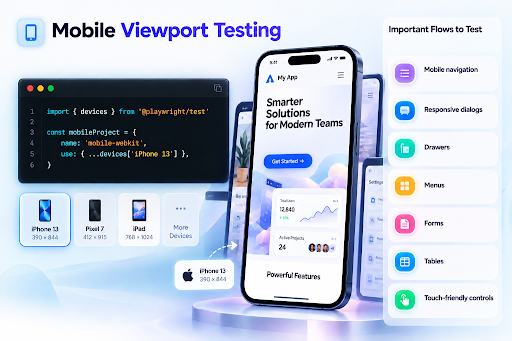
Mobile Viewport Testing
Playwright can simulate mobile devices and different viewport sizes without physical hardware.
Focus on important responsive interactions such as navigation menus, dialogs, drawers, forms, tables, menus, and touch controls.
Rather than testing every possible viewport, prioritize the devices and workflows that matter most to your application.
Cross-Browser Testing
Playwright supports Chromium, Firefox, and WebKit.
A practical strategy is to use Chromium for fast local development and run broader browser coverage in CI. This helps catch layout differences, CSS issues, JavaScript compatibility problems, and browser-specific form behavior before deployment.
Running Playwright in CI
A simple CI flow is:
Checkout code → install dependencies → install Playwright browsers → build application → run E2E tests → upload the report.
Useful commands include npm ci, npx playwright install –with-deps, npm run build, and npx playwright test.
As the suite grows, parallel workers, sharding, blob reports, and merged reports can reduce CI time. These optimizations can wait until the suite is large enough to need them.
Best Practices for Reliable Tests
Prefer accessible selectors such as getByRole(), getByLabel(), and getByText(). Use getByTestId() only when there is no reliable user-facing selector.
Use web-first assertions so Playwright waits for the expected state. Avoid fixed delays because they make tests slower and more fragile.
Keep tests independent and give each test its own setup or reusable fixture.
Finally, prioritize important user flows such as login, signup, checkout, creating records, editing records, deleting records, payments, and account settings. You do not need an end-to-end test for every label, icon, CSS class, or minor visual detail.
Common shadcn/ui Testing Problems
Dialog or menu cannot be found: the component may render in a portal, so locate it from page.
Overlay assertions can be flaky when exit animations are still running. Reduced motion or an assertion for the hidden state can help.
Clicks can be blocked when another overlay is still open. Close the active overlay before continuing.
Selectors often break after component updates when they depend on implementation details. Prefer roles, labels, and user-facing text.
Select tests can fail with selectOption() because shadcn Select is not a native select. Click the trigger and select an option by role.
Toast tests can be flaky when the toast disappears quickly. Assert the message immediately after the triggering action.
Build Better UI With Reusable References
Good E2E testing becomes easier when the application follows consistent UI patterns.
The more consistent the interface structure is, the easier it becomes to write predictable selectors and reusable test patterns.
For larger application screens, shadcn pages can provide useful references for larger layouts and complete screens.
Final Thoughts
Playwright works well with modern Next.js applications because it tests the application from the same perspective as the user.
Instead of checking whether individual pieces exist, you can verify complete workflows involving Server Components, Client Components, Server Actions, authentication, forms, APIs, navigation, and shadcn/ui interactions.
Start with the workflows that matter most to your application. Login, signup, checkout, form submission, and data management are good places to begin. Expand the test suite as the project grows.
The most reliable Playwright tests follow a few simple principles: use user-facing selectors, avoid fixed delays, keep tests independent, control test data, and verify meaningful user outcomes.
With that foundation, Playwright can provide stronger confidence that a Next.js application continues to work across code changes, browsers, responsive layouts, and deployments.

Read Dive is a leading technology blog focusing on different domains like Blockchain, AI, Chatbot, Fintech, Health Tech, Software Development and Testing. For guest blogging, please feel free to contact at readdive@gmail.com.